Search results
Active@ Virtual Disk
Active@ Virtual Disk allows to mount ADI or RAW image as a virtual disk drive and access its contents via Windows Explorer or any other file manager.
Running Active@ Virtual Disk
To Start Active@ Virtual Disk select Active@ Virtual Disk command in Active@ Disk Image folder in Start Menu. Active@ Virtual Disk will start and main window displaying open and mounted images will be shown.
Alternatively you can launch Active@ Virtual Disk by clicking on Mount Image icon in the main screen of Active@ Disk Image or executing command Tools > Mount Image.
A mounted image is available only as long as Active@ Virtual Disk is running, so you should not exit it if you want keep an image mounted. To stay active and at the same time to be not obtrusive, Active@ Virtual Disk normally runs in a System Tray. When you click a red close button in the right upper corner of main window, Active@ Virtual Disk does not stop but actually hides into system tray. To bring the main window back, find an icon of Active@ Virtual Disk in the system tray and double click on it. You can also right-click on the icon to show a context menu.
To actually exit Active@ Virtual Disk, select Quit from context menu of Active@ Virtual Disk in the system tray.
Only one instance of Active@ Virtual Disk can be running at the same time, so if you accidently start the application again from the Start Menu, it will actually bring the running instance to the screen.
User Interface
Active@ Virtual Disk contains one window showing a list of open images, partitions inside them and mounting status
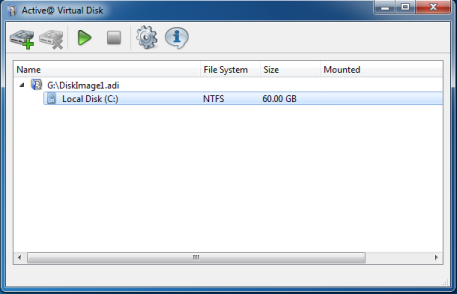
At the top of the window there is a tool bar with buttons giving access to the main operations:
- Add Image
- Remove Image
- Mount Partition
- Unmount Partition
- Settings
- About
Some of them might be disabled depending on the context.
Opening and mounting disk images
The procedure of mounting a disk image consists of two steps.
- Open an ADI or RAW image by clicking on Add Image button.
The image will be open and added into the list. It will show the list of partitions it contains. (You can only open RAW image containing a single partition).
- Select a partition you’d like to mount and click the Mount Partition button. A drive letter selection dialog will be shown:
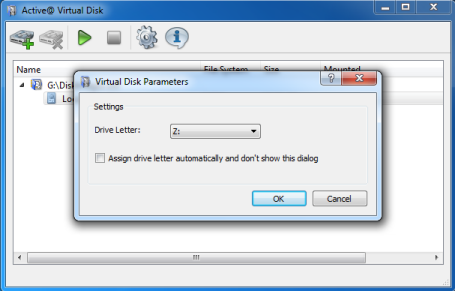
Select a drive letter and press OK. The image will be mounted and a new virtual drive will appear in Windows Explorer. You can work with it the same way as with a normal drive. A virtual drive is read-only and attempting to copy files to it or change data in it will fail.
Active@ Virtual Disk must be running to ensure that virtual disk is working. If you don’t want the main window to occupy screen space simply click on the Close button of the window - Active@ Virtual Disk will hide into the System Tray. Clicking on the tray icon will bring the window back.
Un-mounting and closing images
You should keep images open only as long as you use them. When you’re done with the image, it’s better to close the virtual disk drive.
Select a mounted partition and click the Unmount Partition button in the toolbar. The partition will be unmounted and the virtual drive will disappear.
Unmounting a partition does not close the image itself, so if you don’t need it, you can select an image and click the Remove Image button.
If you simply remove an image without unmounting its partition first, all mounted drives will be unmounted automatically. The same is true when you exit the program – all mounted partitions will be unmounted and all open images closed.
You can also unmount all disks at once by selecting the Unmount All Disks command in the context menu in the program icon in the System Tray.
Troubleshooting
Active@ Virtual Disk keeps a log of operations like installing driver, opening and closing images, mounting and unmounting virtual drives. The log file is located in the installation folder (normally C:\Program Files\Active@ Disk Image) and is named virtdisk.log. It can show additional details about Active@ Virtual Disk operations.
If you see any problem with installing a driver, mouting a partition or should the Active@ Virtual Disk crash, a stranded virtual drive, a machine reboot should be the best remedy.